What You Get
A quick tour of the main pages. All screenshots use the default dark theme.
Dashboard
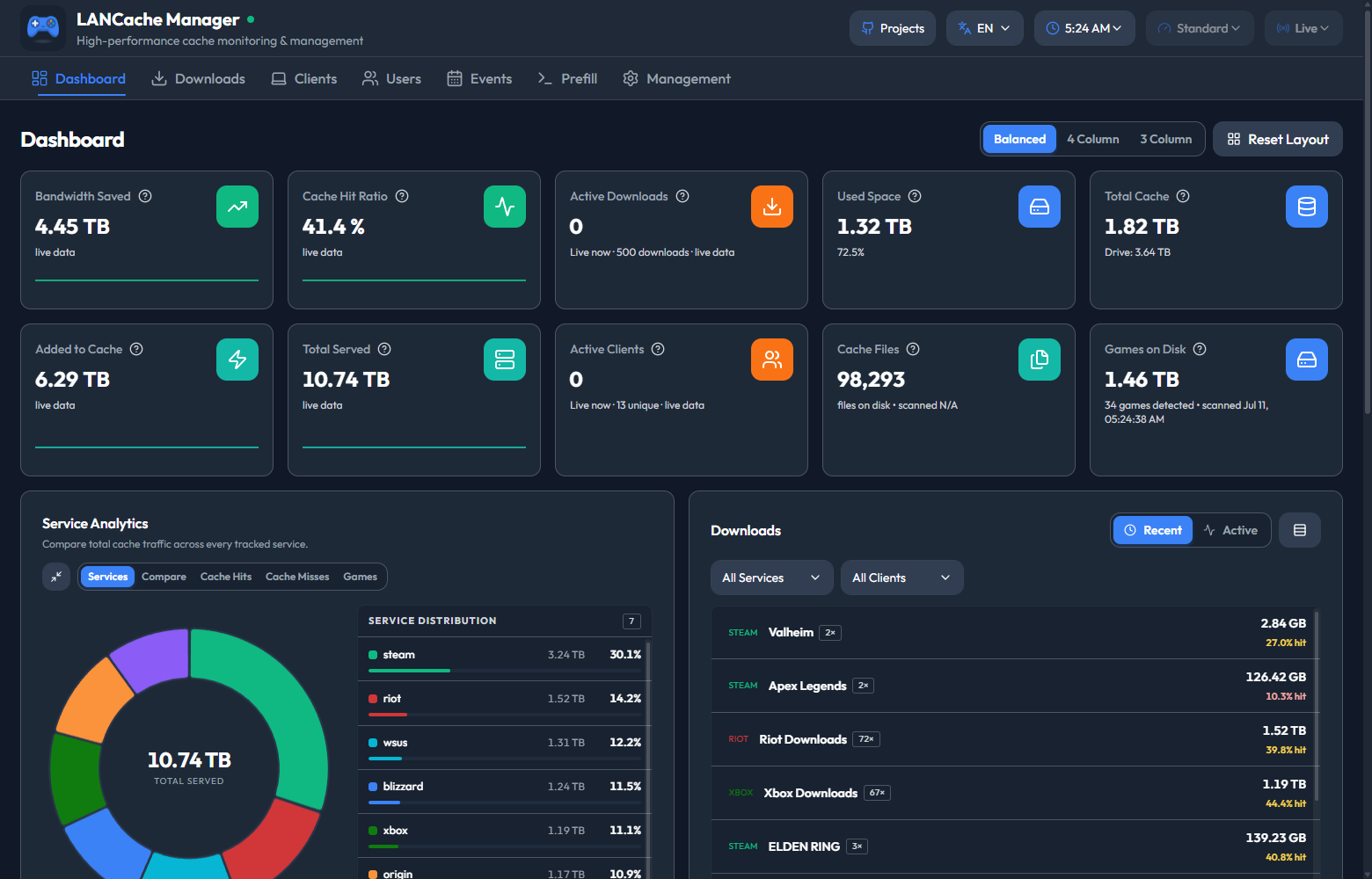
Dashboard - bandwidth saved, hit ratio, service analytics, and top clients in one view
Downloads
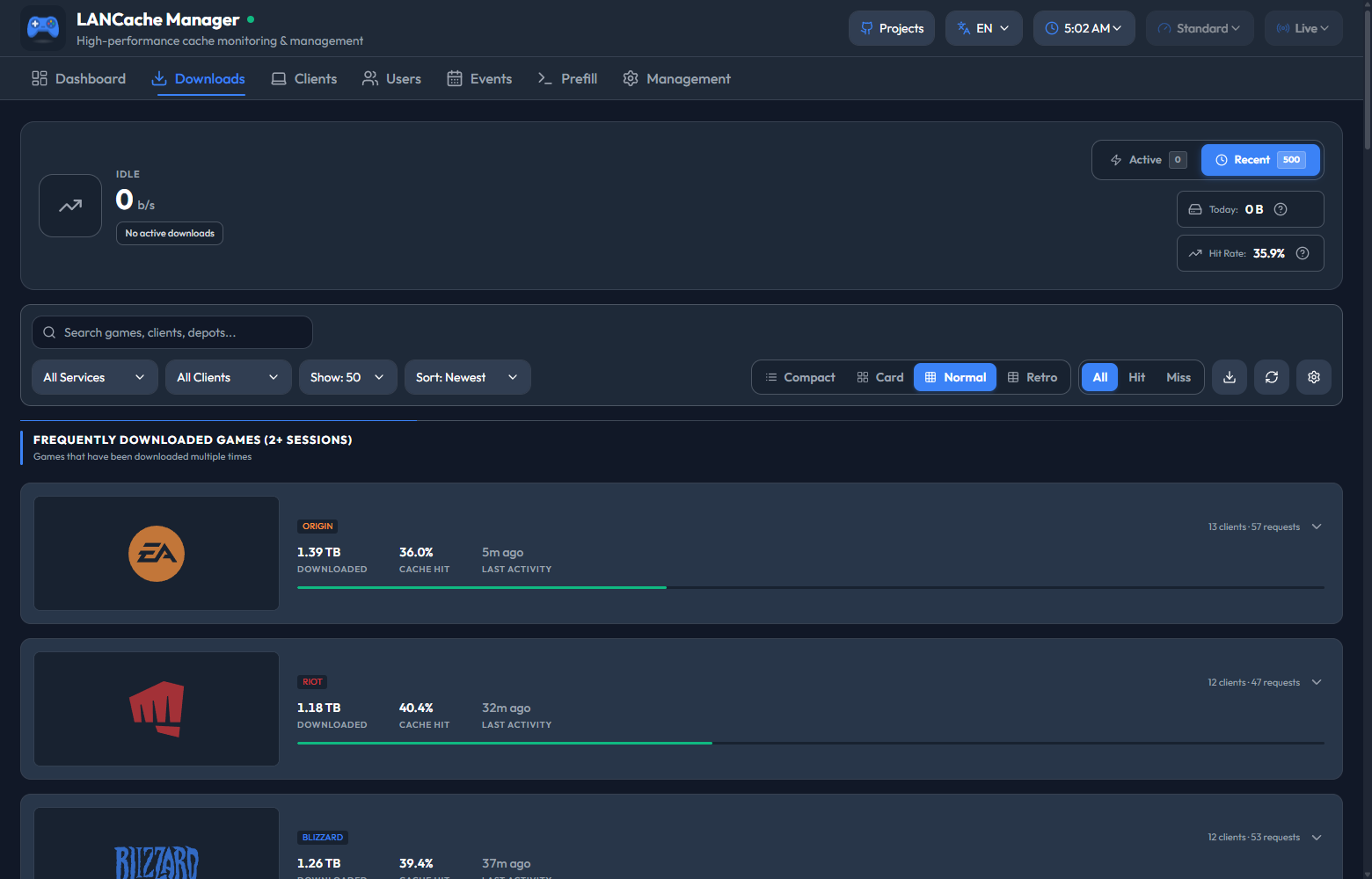
Downloads - every cached game with cover art, sizes, and per-client history
Three view modes: Normal (cards, shown above), Compact (a dense list), and Retro (a per-depot table straight out of a 90s BBS). Hit/Miss and per-client filters narrow the list.
Clients
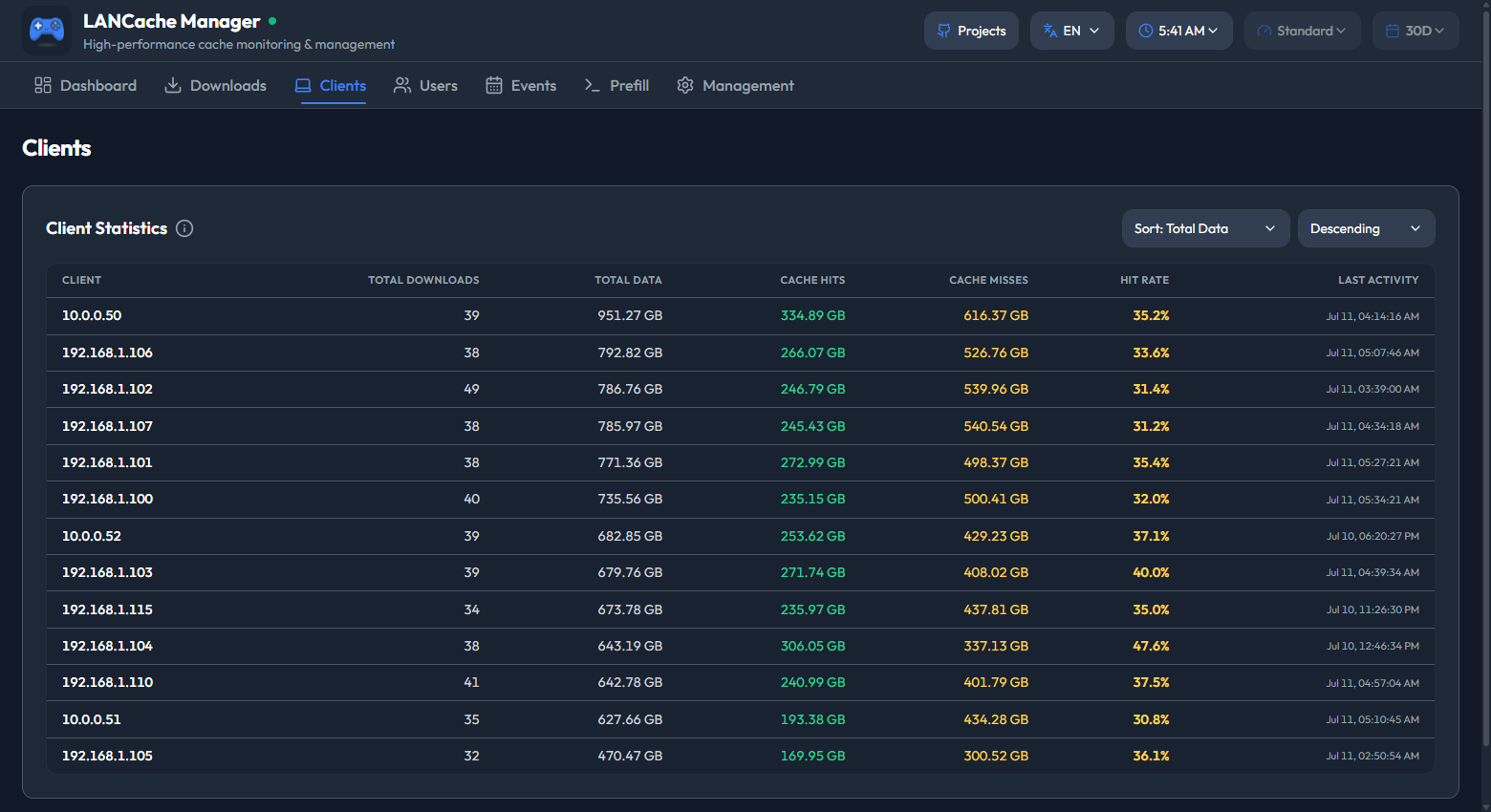
Clients - which devices use the cache, and how well it serves each one
Open it when you want to know which machines pull the most and whether their installs actually hit the cache.
Users
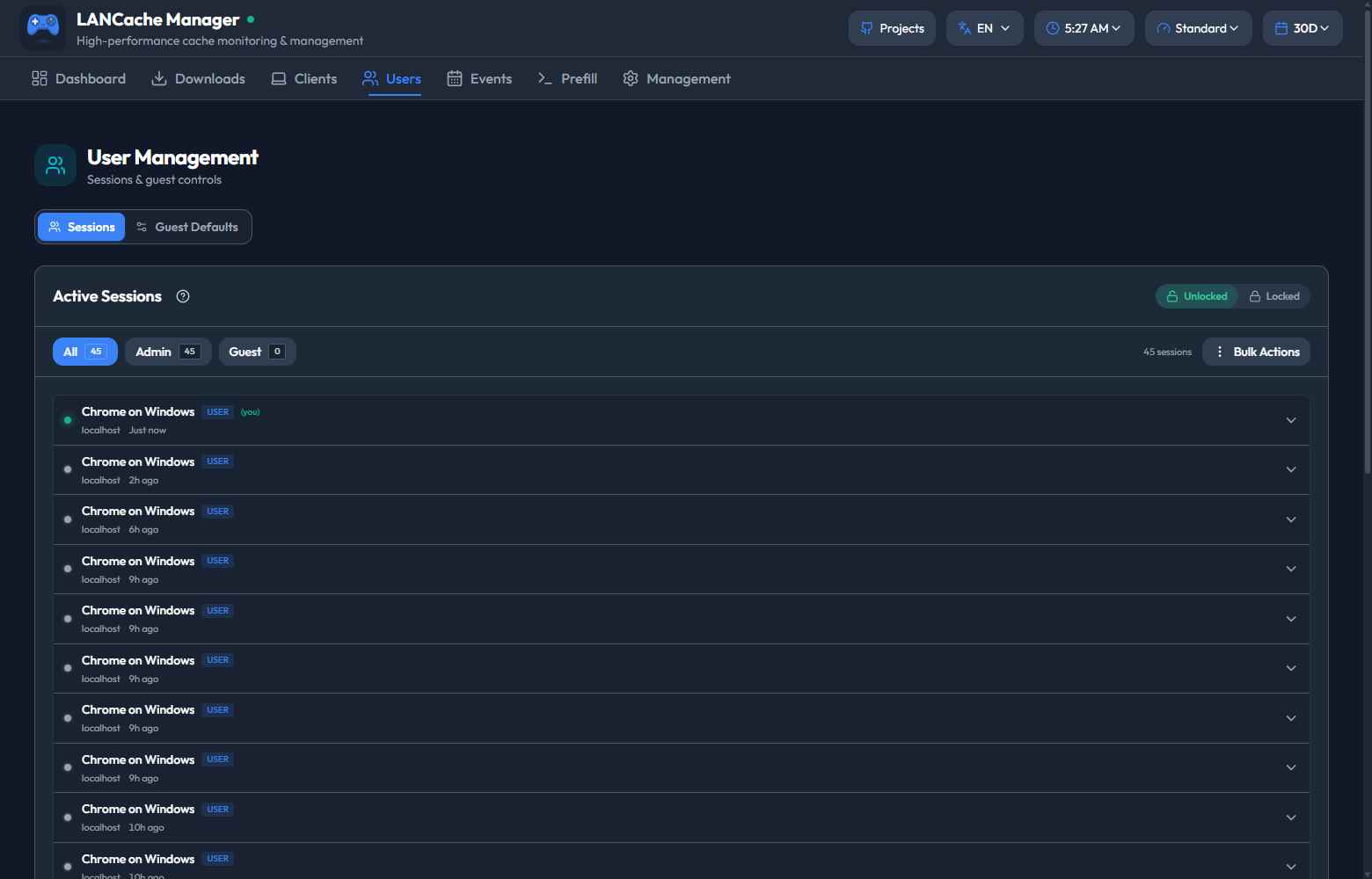
Users - active sessions and guest access
This is where guest access and signed-in accounts live: watch active sessions, create users and administrators, and hand out time-limited, view-only access without sharing an account. The Primary account and its sessions are visible only to that account.
Events
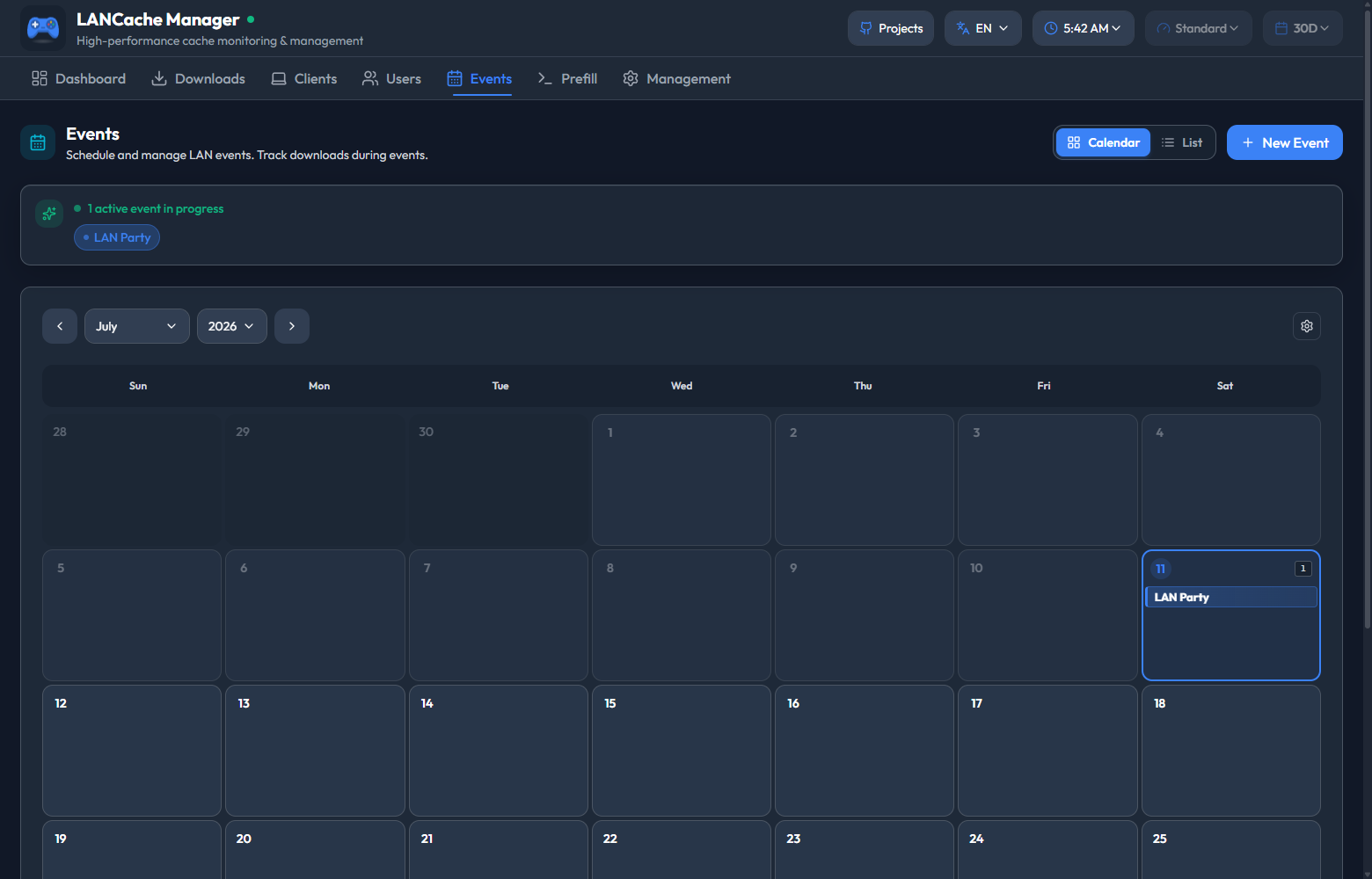
Events - download activity and LAN events on a calendar
Planning a LAN party? Put it on the calendar and see download activity in date context.
Status Check
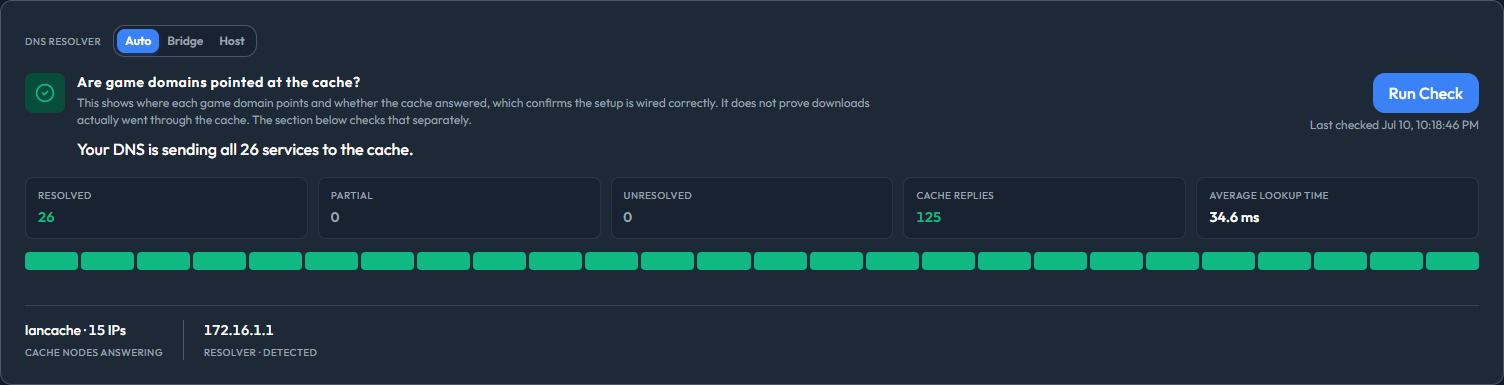
Status Check - verify DNS, cache reachability, and recent download routing
The Status Check tab (Management → Status Check) answers "is my LANCache actually working?" without touching a terminal. It checks that game domains resolve to your cache, that the cache answers, and that recent downloads really went through it - per domain, in plain language.
Why "From this device" says inconclusive, and how to fix it
Your browser runs that one probe, not the server, so it reports what your client sees. It requests http://lancache.steamcontent.com/lancache-heartbeat, and a real cache node answers 204 with an X-LanCache-Processed-By header naming itself.
Browsers won't let a page read that header across origins unless the cache opts in. Current lancachenet/monolithic images have shipped that opt-in for years, so a definitive answer is the normal case. On an older image or a custom nginx config, the card falls back to a request that proves something answered but not what, reports inconclusive, and logs a CORS error in your browser console. Nothing is broken. Every other Status Check result comes from the server and is unaffected.
To fix an older or custom cache, add these to the heartbeat location in its nginx config:
location /lancache-heartbeat {
    add_header X-LanCache-Processed-By $hostname always;
    add_header Access-Control-Allow-Origin "*" always;
    add_header Access-Control-Expose-Headers "X-LanCache-Processed-By" always;
    return 204;
}
Access-Control-Expose-Headers is the line people miss. Without it the request succeeds and the header is still unreadable, so the card stays inconclusive. * is safe here: the probe sends no cookies or credentials, and the response carries nothing but the node name.
Two caveats. If you serve this manager over https, the browser blocks the plain-http probe outright and the card cannot work regardless of CORS. And if the probe returns something other than 204 (a 403, say), that is a real finding rather than a CORS problem: the domain resolved to something that is not your cache.
Logs & Cache
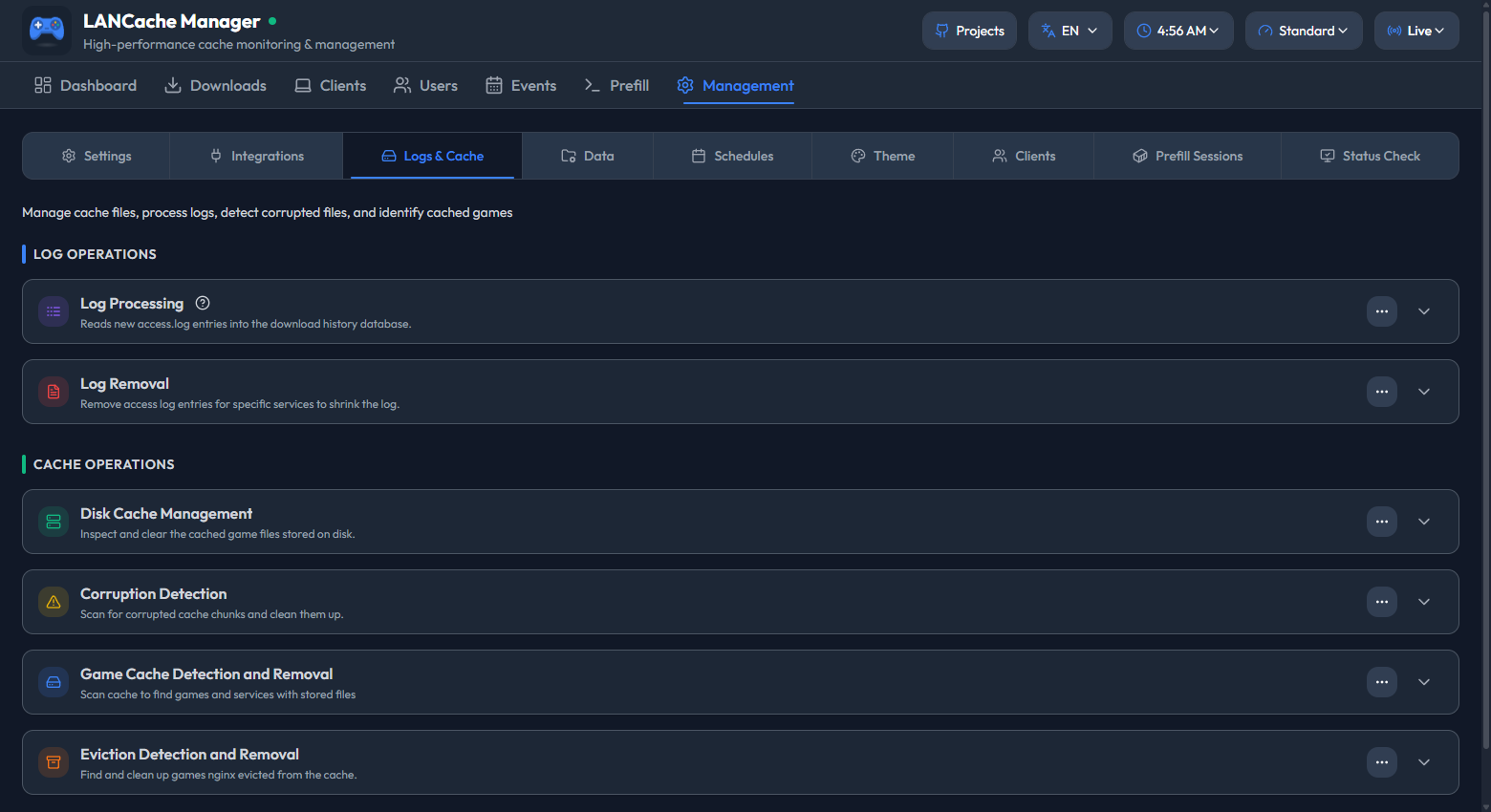
Management → Logs & Cache - process logs, manage the disk cache, and detect corrupted or evicted files
Corruption scanning. Two scans, for two different problems. A repeated-miss scan reads your logs for files that are on disk but keep missing, which usually means the cached copy is bad. A structural scan opens the cache files themselves and checks nginx headers, payload offsets, and recorded lengths, flagging only proven failures. Structural runs as Full Scan (every eligible file, rebuilds the baseline) or Incremental Scan (only new, changed, or previously unresolved files). Removing anything a scan finds needs the /cache mount without :ro.
That covers the daily surface. Management has more tabs behind it - expand below to see all of them.
See every Management page
Settings
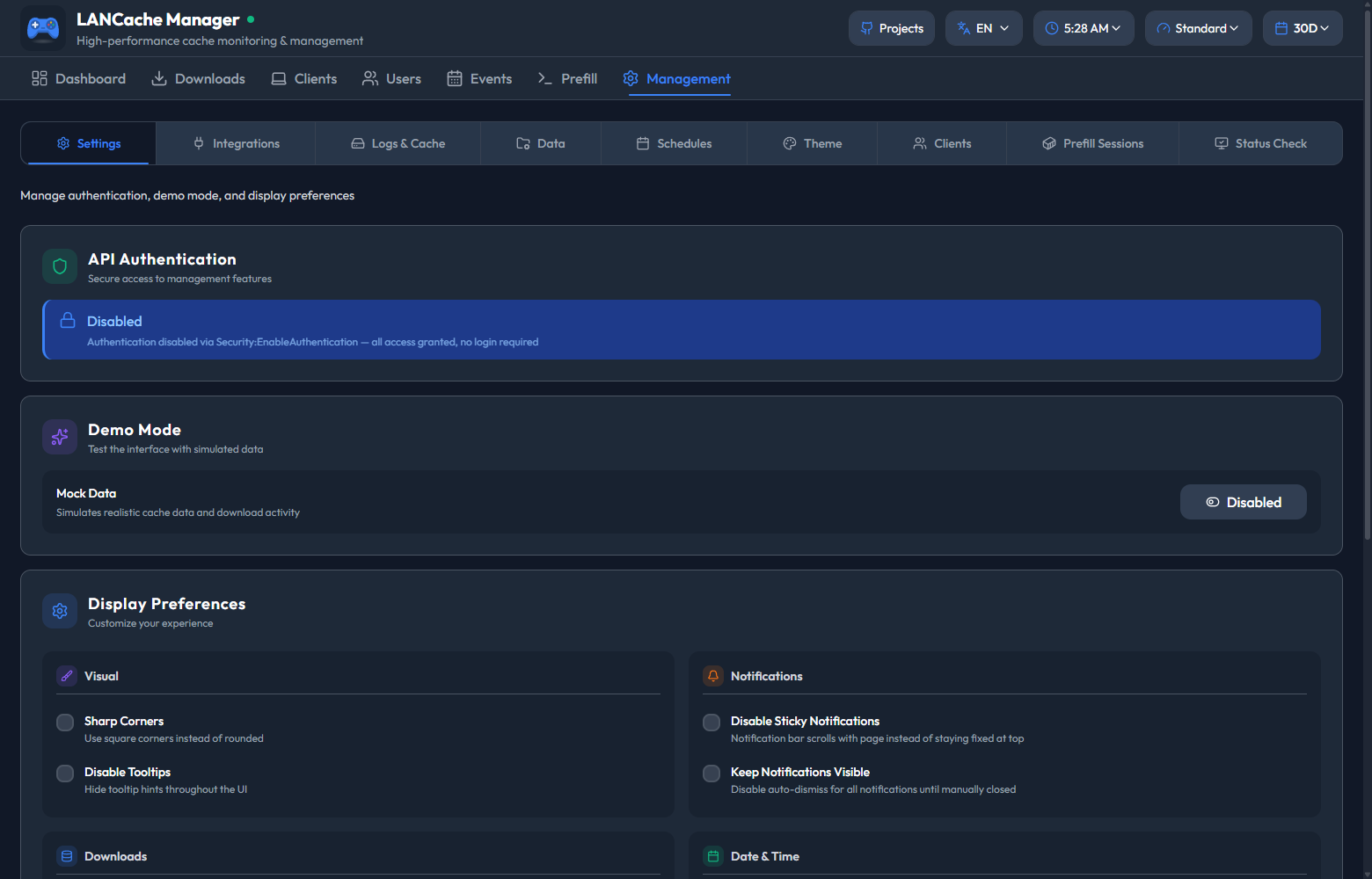
Settings - authentication, demo mode, and display preferences.
Demo Mode fills the interface with simulated data, so you can try the UI out before you have any real cache history.
Integrations
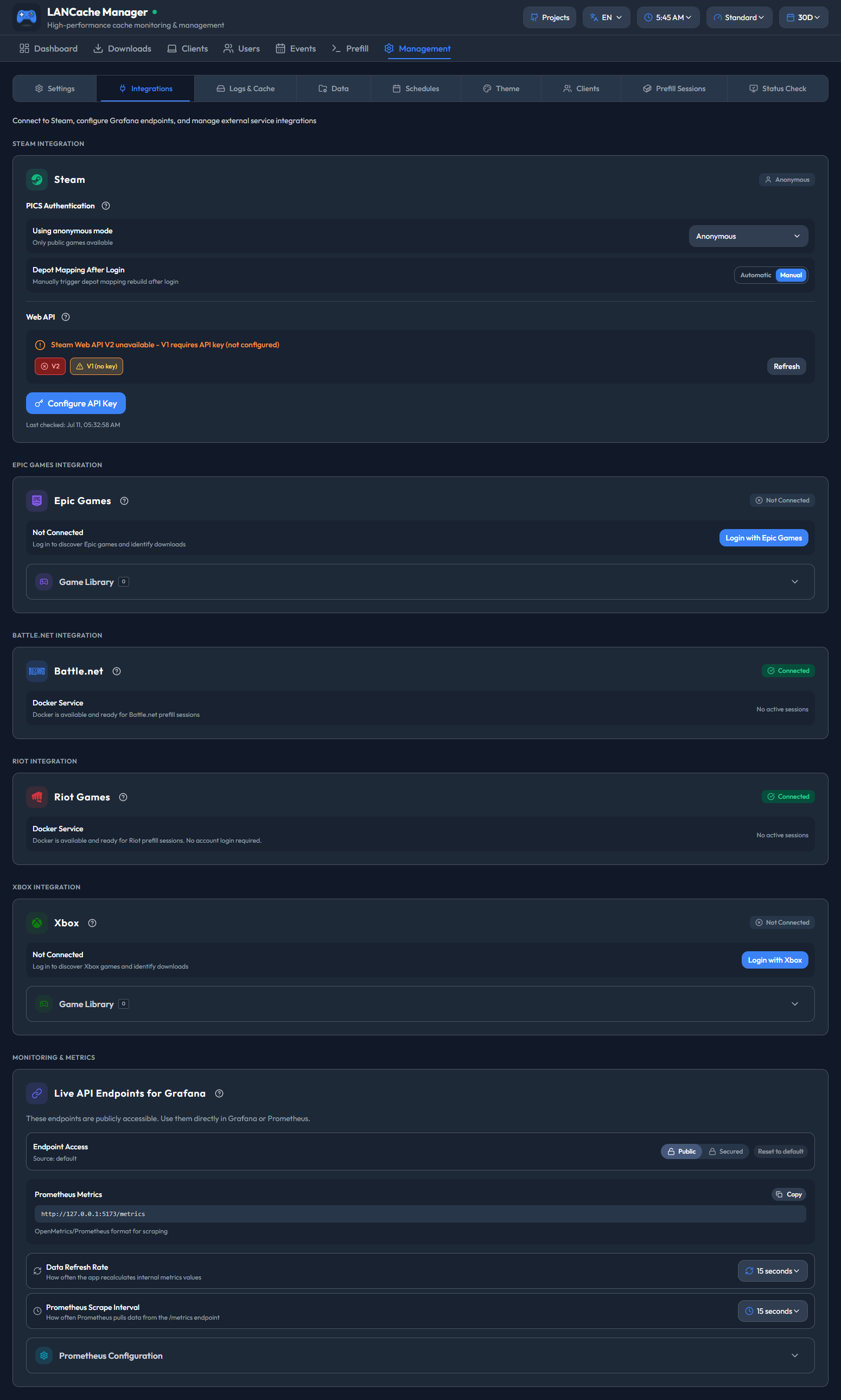
Integrations - sign in to the game platforms and configure the Prometheus endpoint. One page shows the login state of all five prefill services.
Data
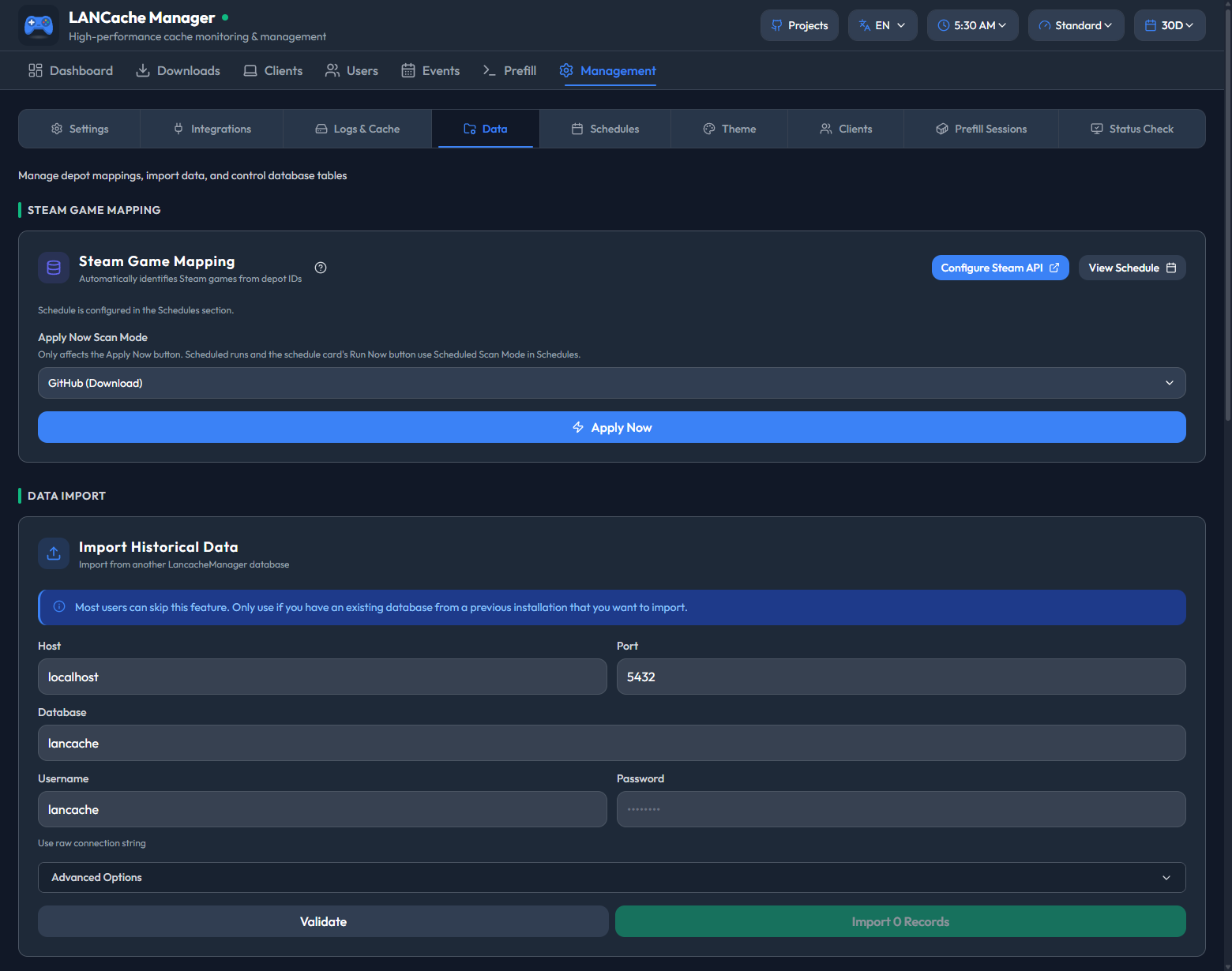
Data - Steam game mapping and database import.
Schedules
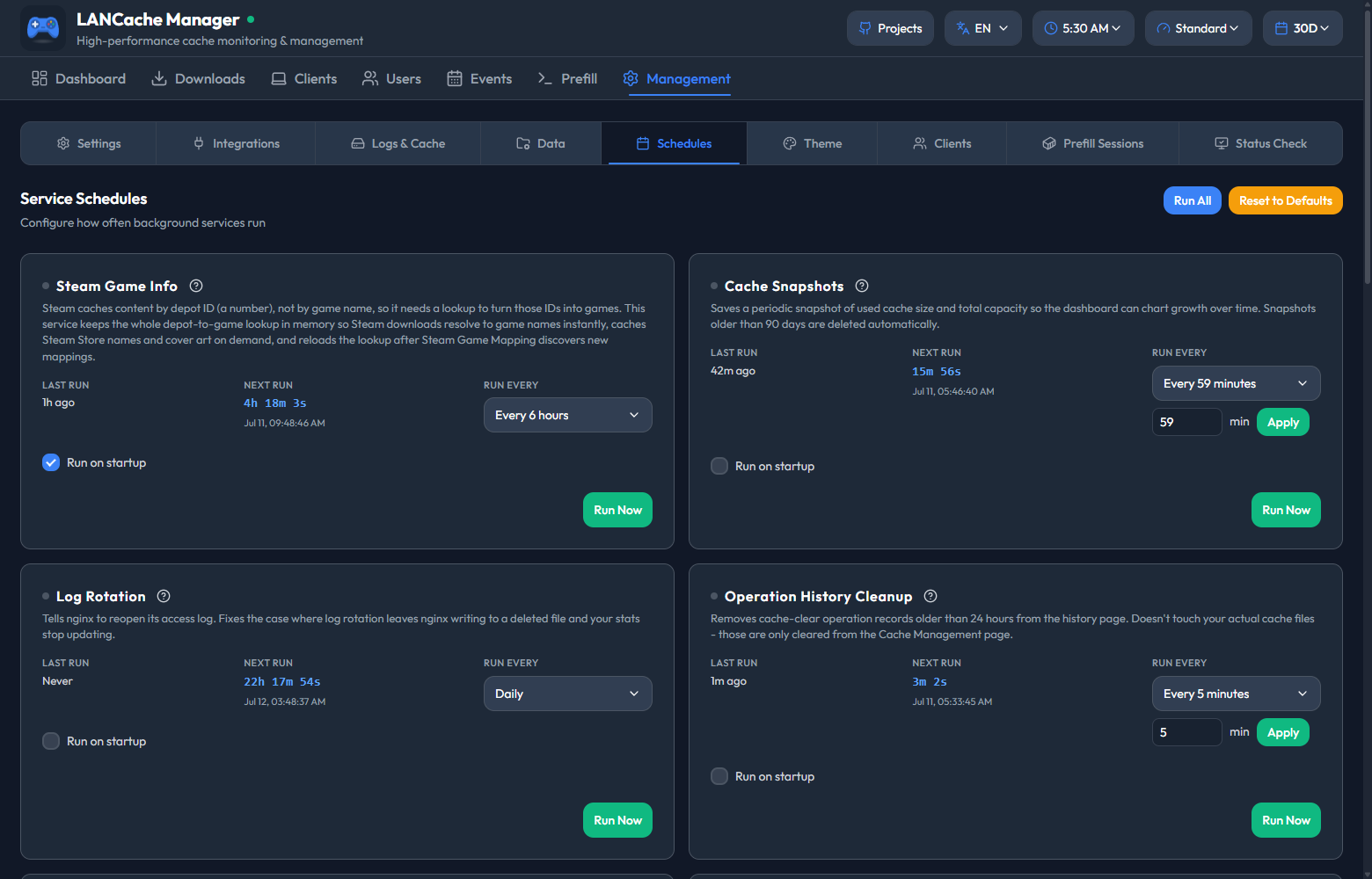
Schedules - every background service on its own interval, each with a Run Now control. The Scheduled Prefill card lives at the bottom of this page and is shown in the Prefill section below.
Theme
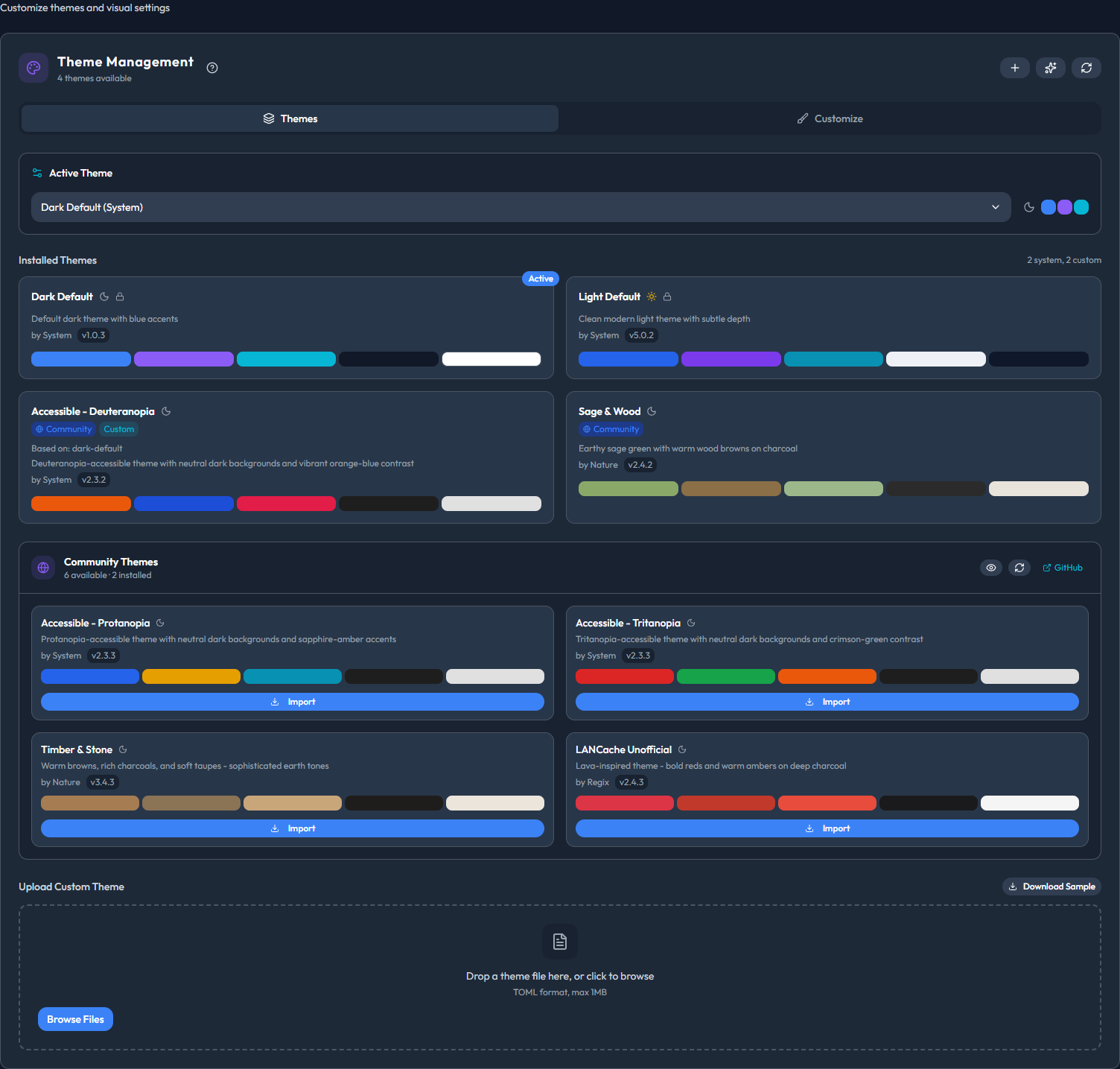
Theme - switch between installed themes, import community themes, or upload your own.
Clients (aliases and exclusions)
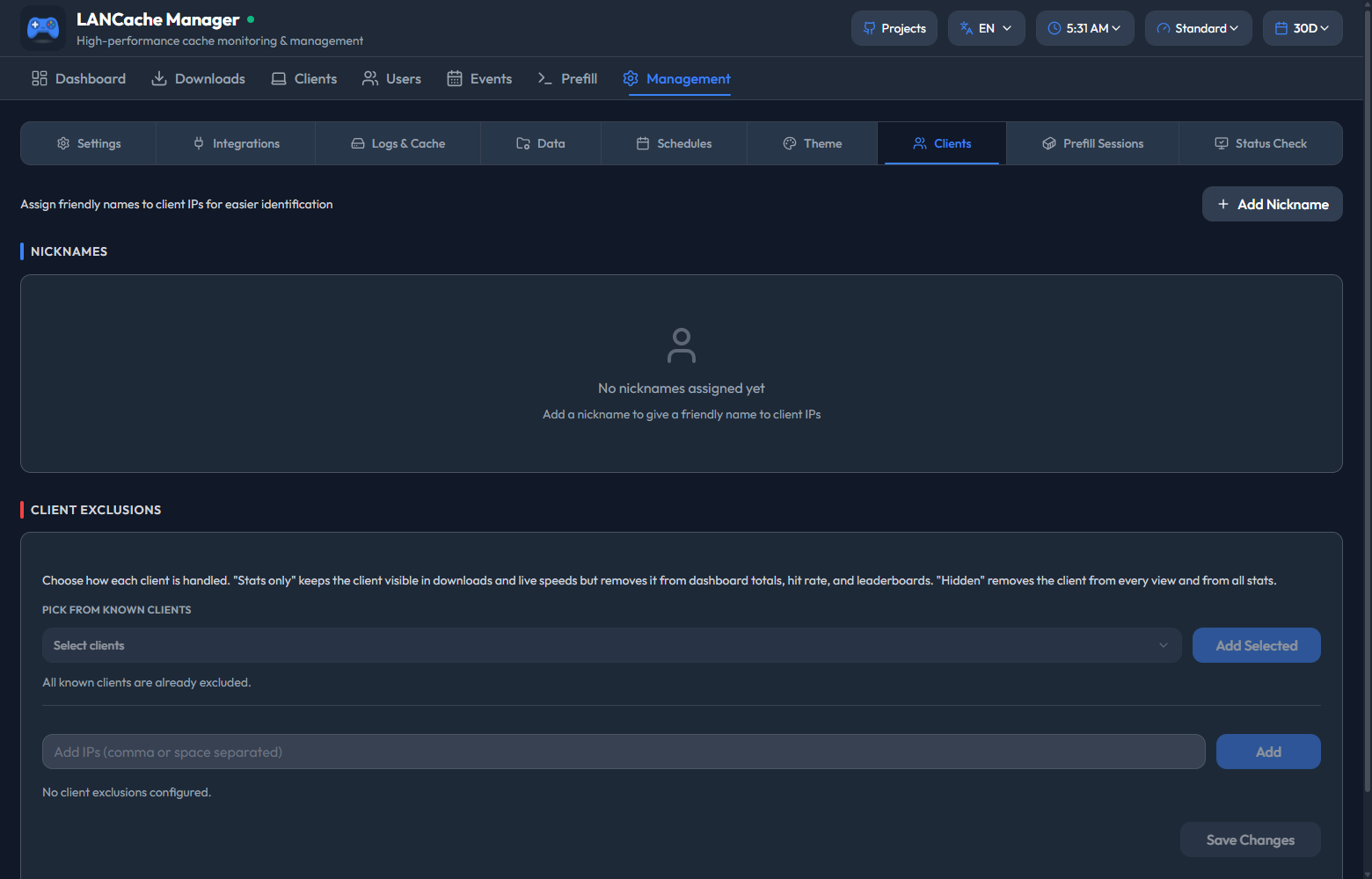
Clients - give devices friendly names and exclude machines from the stats.
One nickname can cover several IP addresses - handy when a machine dual-boots or moves between wired and wireless and would otherwise show up as separate clients.
Prefill Sessions
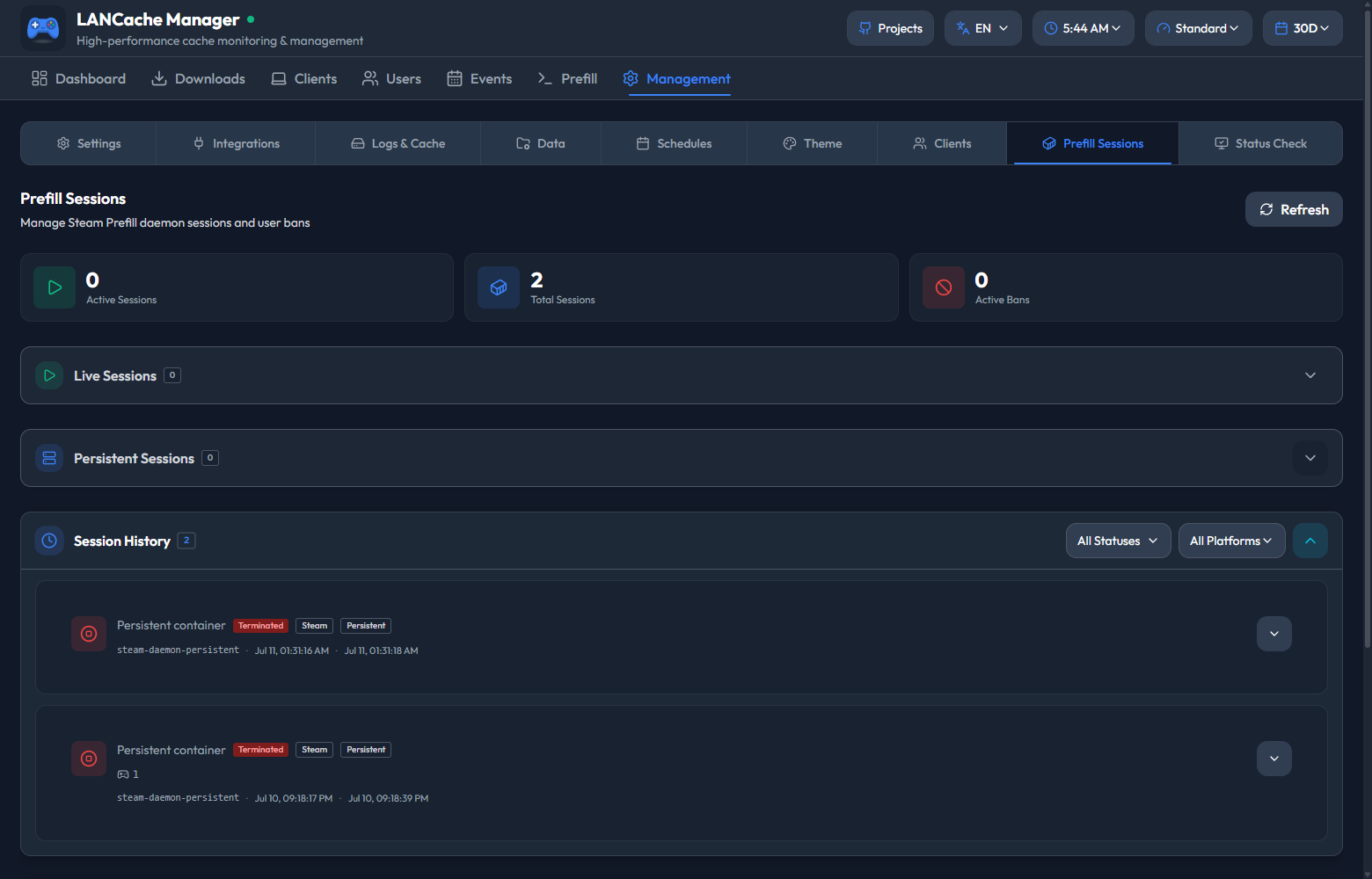
Prefill Sessions - watch live and persistent prefill containers and review past runs.