Prefill
Prefill downloads games into your cache before people connect. When guests show up, every install reads from your cache instead of the public internet - full LAN speed, no bandwidth bottleneck.
Steam, Epic, Battle.net, Riot, and Xbox each run in their own container, so you can prefill all of them at the same time without them interfering. Progress streams live to the UI.
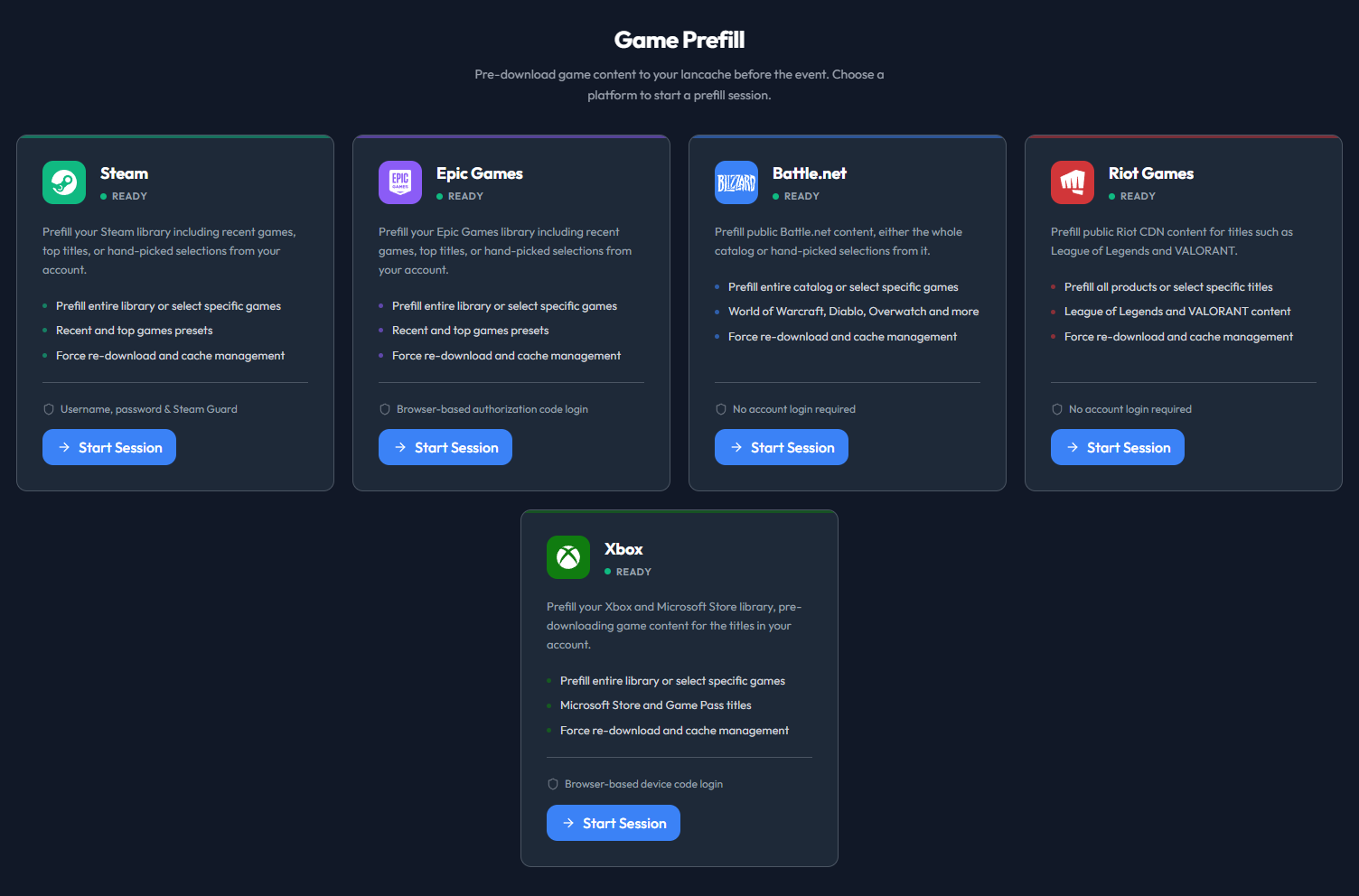
Pick a platform to start a prefill session
Requirements
- Docker socket mounted (
/var/run/docker.sock) - Signed in to LANCache Manager with an admin or user account (guests can prefill only on platforms an admin has granted them)
- Your cache server is reachable from the prefill container (see Network setup below)
- For Xbox specifically, a container-based lancache. Bare-metal has no Xbox Live log, so its downloads stay invisible to the manager - see Bare-Metal LANCache
Running a prefill
The flow is the same on every platform:
- Open the Prefill tab and pick Steam, Epic Games, Battle.net, Riot Games, or Xbox
- Sign in (Steam Guard for Steam, OAuth for Epic, a Microsoft device code for Xbox; Battle.net and Riot need no login)
- Pick games from your library
- Hit Start Session
That's it. Leave it running - when guests arrive, everything's cached.
Note
Prefill builds on community daemons:
- Steam: steam-prefill-daemon, a fork of steam-lancache-prefill by @tpill90
- Epic: epic-prefill-daemon - account login via OAuth
- Battle.net: battlenet-prefill-daemon - fully anonymous, no account needed
- Riot: riot-prefill-daemon, built on @tpill90's lancache-prefill tools - fully anonymous; covers League of Legends and Valorant
- Xbox: xbox-prefill-daemon - signs in with a Microsoft device code (account required, like Epic)
Importing Steam App IDs
Have a list of App IDs from steam-lancache-prefill or somewhere else? Skip the library browser:
- Click Select Apps
- Click Import App IDs
- Paste your IDs in any of these formats:
- Comma-separated:
730, 570, 440 - JSON array:
[730, 570, 440] - One per line
- Click Import
The dialog tells you how many games were added, how many were already selected, and how many IDs aren't in your Steam library (those aren't added to your selection).
Tip
Coming from steam-lancache-prefill? Open selectedAppsToPrefill.json and paste the contents straight into the import field - the JSON array is parsed as-is.
Scheduled Prefill
Set this up once and stop prefilling by hand before every event. Go to Management → Schedules and open the Scheduled Prefill card. The card has one global Run action and one global Actions menu. Run starts the enabled saved schedules immediately. Actions opens Activity and Shared container settings.
Each service lists its saved schedules as separate rows. A row shows one exact saved schedule, and its Run action starts only that schedule. Edit schedule opens that exact record. Save your changes, close the editor, and then use Run this schedule from its row. Unsaved changes never affect a run.
Add schedule for service and Duplicate both open a draft. They do not create a schedule until you choose Save schedule. Deleting a saved schedule does not stop its service container or remove cached games, and each service must keep at least one saved schedule.
Each service has one shared container for all of its schedules. Use Manage the service container to start it and sign in. A scheduled run reuses the container only when it is already running; it never starts the container. If an account service is not ready, its schedule is skipped as "needs login" while other services continue. A run where every schedule is skipped reports as unsuccessful and shows the reason in its notification.
Shared container settings supplies the defaults used by all service containers. An existing saved After a restart override still takes precedence for its service. Stopping a service container signs it out and clears its stored login. Only the LANCache account that saved a Steam, Epic, or Xbox login can reuse that login. Battle.net and Riot are anonymous and require no account, but their shared service containers must still be running.
Activity covers Steam, Epic, Xbox, Battle.net, and Riot in one view. It shows active downloads and run history, and it lets you cancel an active download. Game selection belongs to the exact saved schedule. To delete cached game content, use Management → Game Cache Removal instead of deleting a schedule.
Other schedule behavior remains service-specific:
- Intervals and state. Every saved schedule has its own "run every" interval. You can pause a schedule or set it to run only on startup. The first automatic run is one interval after you save; saving does not start a run.
- Presets or hand-picked games. Presets are All, Recent, and Top. Epic has no Recent because its API exposes no last-played data. Battle.net and Riot are All-only. Games selected for a schedule override its preset.
- New schedule history. "Last run: Never" remains until that saved schedule finishes its first run. Its next run is predicted from its interval.
- Target platforms. Only Steam supports the Windows, Linux, and macOS depot filter. Windows is the default.
- Download controls. Force re-download is off by default. Connections can be Auto or Fixed from 1 through 256. Each schedule can show its run notifications normally or silently.
Defaults and limits:
| Setting | Default |
|---|---|
| Run every (per schedule) | 24 hours |
| Preset | All (Top uses the top 50 games) |
| Persistent login validity | 90 days |
| No-progress cutoff (per scheduled run) | 30 minutes |
| Force download | Off |
| Max concurrency | Auto (fixed: 1-256) |
| Longest single service run | 12 hours |
The rest of the Schedules page works the same way for every background service - log rotation, eviction scans, game detection, cache snapshots, and more. Each service is a row with its own interval and a run control at the end. There's an Xbox Game Mapping row too, so the Xbox catalog can refresh on its own schedule.
Network setup
Most installs need zero config. If you run the standard lancache + lancache-dns containers, lancache-manager auto-detects them and prefill works without further setup.
If your DNS isn't a stock lancache-dns (you use AdGuard Home, Pi-hole, public DNS, etc.) or your routing is unusual, set one env var and you're done:
| Your setup | What to set |
|---|---|
Stock lancache + lancache-dns containers |
nothing |
| Single-box install (lancache on the same host as lancache-manager) | nothing |
| AdGuard Home, Pi-hole, or any DNS replacement | Prefill__LancacheIp=<your-cache-ip> |
| Host networking, host's DNS doesn't route CDN to your cache | usually nothing - the cache is auto-detected via the bridge gateway and heartbeat-verified; set Prefill__LancacheIp=<your-cache-ip> if the network panel still warns |
Caddy/Squid/non-nginx cache that routes by Host: header |
Prefill__LancacheIp=<your-cache-ip> |
| You want predictable behavior regardless of environment | always set Prefill__LancacheIp |
Tip
Prefill__LancacheIp is the universal override. When set, prefill talks to your cache by IP and never asks DNS where the cache lives. Network mode and DNS server settings stop mattering for CDN traffic.
Full descriptions and defaults for Prefill__LancacheIp, Prefill__LancacheDnsIp, and Prefill__NetworkMode live in the Configuration → Prefill reference table.
Important
LancacheIp and LancacheDnsIp are different services, even on the same machine.
| What it is | Port | Job | |
|---|---|---|---|
LancacheIp |
The cache server (lancachenet/monolithic, or any HTTP cache) |
HTTP / 80 | Holds the actual cached game files |
LancacheDnsIp |
The DNS server (lancachenet/lancache-dns, AdGuard Home, Pi-hole, etc.) |
DNS / 53 | Translates lancache.steamcontent.com into the cache's IP |
Think of a small town: the cache is the library where the books live, and the DNS server is the information booth you ask for directions. They can share a building (same IP, different ports) but they do different jobs. Setting LancacheIp walks straight to the library, which is why DNS stops mattering for cache traffic.
Important
LANCACHE_IP only redirects CDN chunk traffic, which is all lancache caches anyway. Steam (api.steampowered.com) and Epic (*.epicgames.com) auth and manifest endpoints still use normal DNS, and are unaffected.
Examples
Most reliable - LancacheIp makes CDN routing DNS-independent:
Bridge mode with a non-standard DNS (e.g., AdGuard Home replacing lancache-dns):
environment:
  - Prefill__NetworkMode=bridge
  - Prefill__LancacheIp=192.168.1.10        # cache server
  - Prefill__LancacheDnsIp=192.168.1.20     # DNS server
Bridge mode, stock lancache-dns, no IP override (legacy DNS-driven path):
Tip
Prefill container has no internet? Try Prefill__NetworkMode=bridge.
Network diagnostics
Each prefill session runs a connectivity test on startup and writes the result to logs:
═══════════════════════════════════════════════════════════════════════
  PREFILL CONTAINER NETWORK DIAGNOSTICS - prefill-daemon-abc123
═══════════════════════════════════════════════════════════════════════
  Internet connectivity: OK (reached api.steampowered.com)
  lancache.steamcontent.com resolved to 192.168.1.10
  DNS looks correct (private IP - likely your lancache server)
═══════════════════════════════════════════════════════════════════════
If the resolved IP is a public address (Steam's real CDN IPs look like 162.254.x.x), traffic is bypassing your cache. Set Prefill__LancacheIp and restart the session.
How routing works (advanced) — which path a request takes
---
config:
  flowchart:
    curve: basis
    padding: 12
---
flowchart TD
  Start([Need a game chunk<br/>from a CDN hostname])
  HasIp{LANCACHE_IP available?<br/>Prefill__LancacheIp or<br/>auto-detected + verified}

  Start --> HasIp

  HasIp -->|yes| Direct[Talk to that IP directly<br/>Host header = CDN name]
  Direct --> Hit([Served from your cache])

  HasIp -->|no| AskDns[Ask DNS where the<br/>CDN hostname points]
  AskDns --> Mode{NetworkMode?}

  Mode -->|host| HostDns[Use the host machine DNS<br/>Prefill__LancacheDnsIp is ignored]
  Mode -->|bridge| Bridge{Prefill__LancacheDnsIp set?}

  Bridge -->|yes| Forced[Query that DNS server]
  Bridge -->|no| Probe[Daemon probes CDN name,<br/>localhost, then gateway]

  HostDns --> Resolved{DNS returned<br/>your cache IP?}
  Forced --> Resolved
  Probe --> Resolved

  Resolved -->|yes| Hit
  Resolved -->|no| Miss([Public CDN IP<br/>traffic skips your cache])
Every combination:
NetworkMode |
LancacheIp |
LancacheDnsIp |
Outcome |
|---|---|---|---|
host |
set | (any) | Reliable. LANCACHE_IP injected; DNS irrelevant. |
host |
unset | (any) | Usually fine. Auto-detect + heartbeat injects LANCACHE_IP; otherwise host DNS is used. DnsIp is dropped in host mode. |
bridge |
set | unset | Reliable. LANCACHE_IP injected; DNS irrelevant. |
bridge |
set | set | Reliable. LANCACHE_IP for CDN, DnsIp for auth/manifest. |
bridge |
unset | set | Works if DnsIp resolves CDN to your cache. |
bridge |
unset | unset | Usually fine. Auto-detect injects LANCACHE_IP; otherwise the daemon probes localhost/gateway. |
Why LancacheIp always works: with it set, the daemon requests GET http://192.168.1.10/depot/... with Host: lancache.steamcontent.com. Your cache routes on Host: and serves from cache. DNS is never asked for the CDN domain.